
Pinterest Conversions API
Forward your AxiTrace server-side events to Pinterest - the same way Facebook CAPI, TikTok Events API, Reddit CAPI and OpenAI Ads already work. You paste two values from Pinterest Ads Manager (an Ad Account ID and a conversion access token), and AxiTrace sends every tracked event to your Pinterest ad account in real time, server-side: immune to ad blockers and browser privacy features.
Merchant prerequisites
Before you can connect, you need:
- A Pinterest Business account with an ad account.
-
A conversion access token, generated in Ads Manager:
open the ☰ menu → Manage business → Conversions → Set up API and click
Generate new token (the full walkthrough with screenshots is below).
The token is displayed together with your ad account ID and is prefixed
pina_- include the prefix when pasting. -
Your Ad Account ID, shown alongside the token when it's generated. You can also find
it under Business Manager → Assets → Ad account, in the "Viewing:" account-switcher dropdown,
or in the Ads Manager URL.
Careful: Pinterest's browser Pinterest Tag uses a different ID space than the server-side Ad Account ID used by this integration - do not confuse the two. The server-side Ad Account ID is at most 18 characters long and belongs in the field above. The Tag ID has its own, optional field, and is only needed for the Pinterest Tag Bridge on Shopify - see Do I also need the Pinterest Tag? below.
AxiTrace needs none of the above beyond the Ad Account ID and token: no Pinterest app or partner review, no OAuth consent screen, and no client secret rotation ("The API does not require an application or a valid app ID").
Official Pinterest documentation:
Open the Conversions page in Ads Manager
- Log in to your Pinterest Business account and open Ads Manager (ads.pinterest.com). You need an ad account - if you don't have one yet, Ads Manager guides you through creating it (no campaign and no Pinterest Tag are required for this integration).
- Open the ☰ menu in the top-left corner and, in the Manage business column, click Conversions.
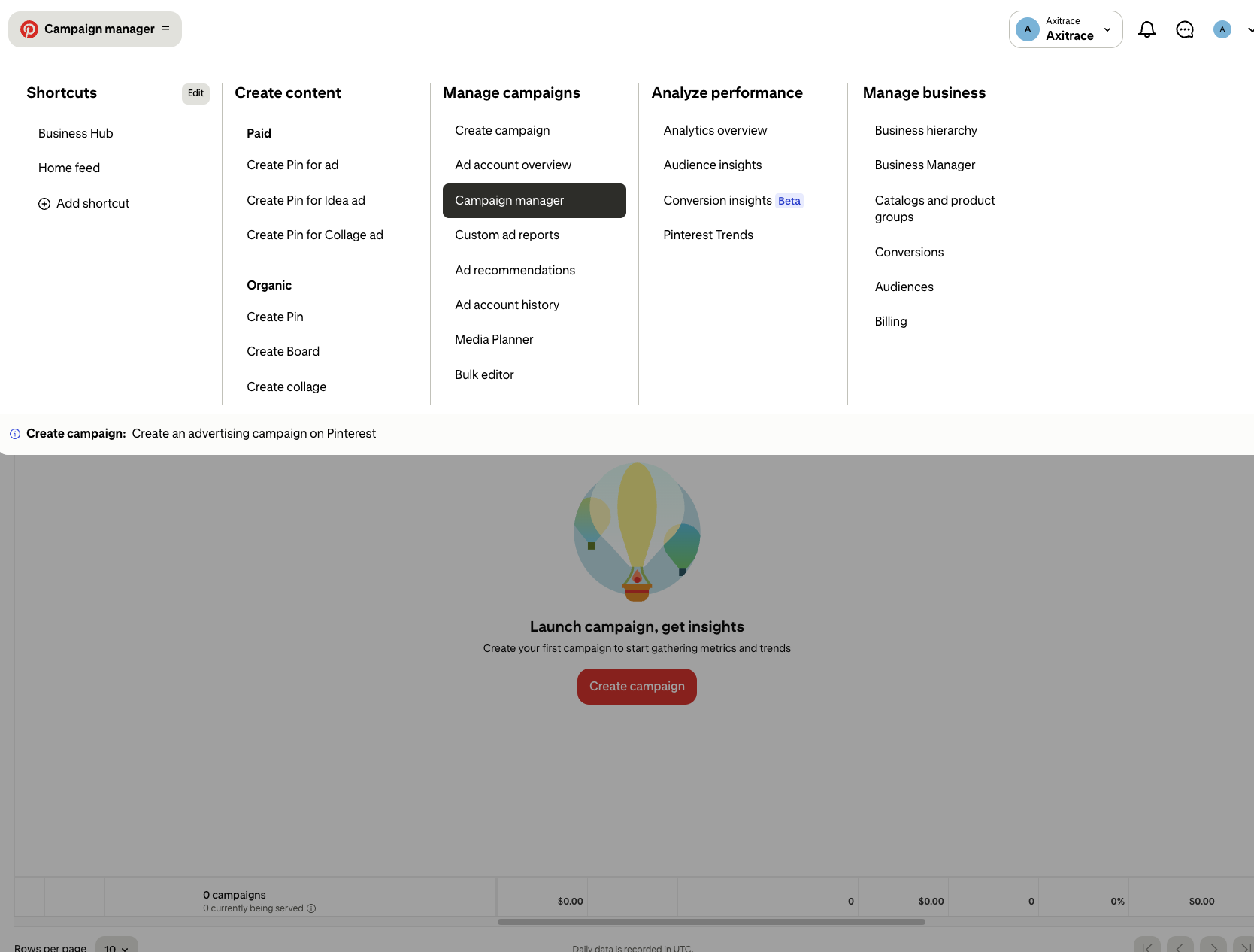
Start the Conversions API setup guide
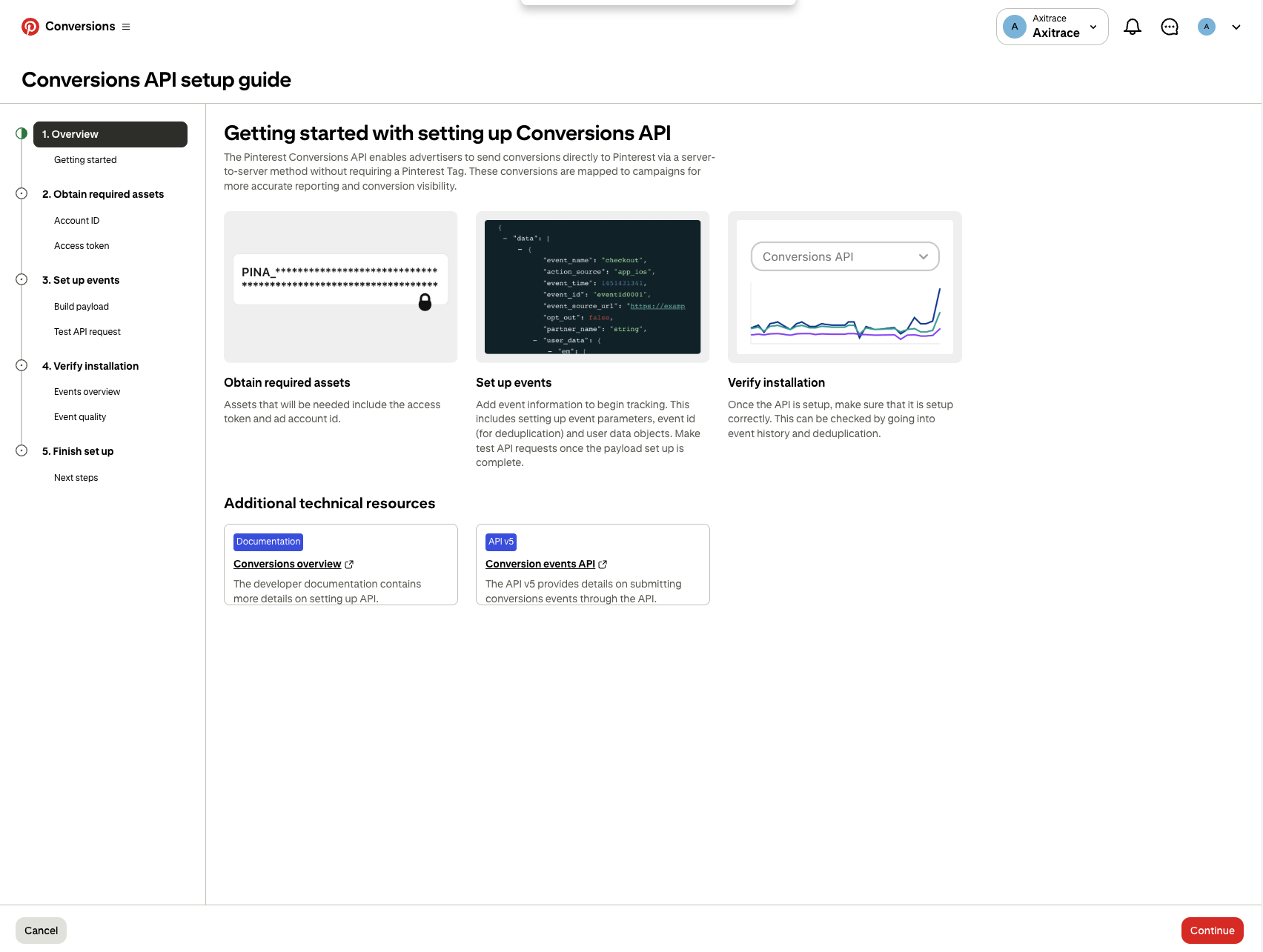
- On the Conversions page, open Set up API - Pinterest launches its “Conversions API setup guide” wizard (steps: Overview → Obtain required assets → Set up events → Verify installation → Finish set up).
- On the Overview step, click Continue.
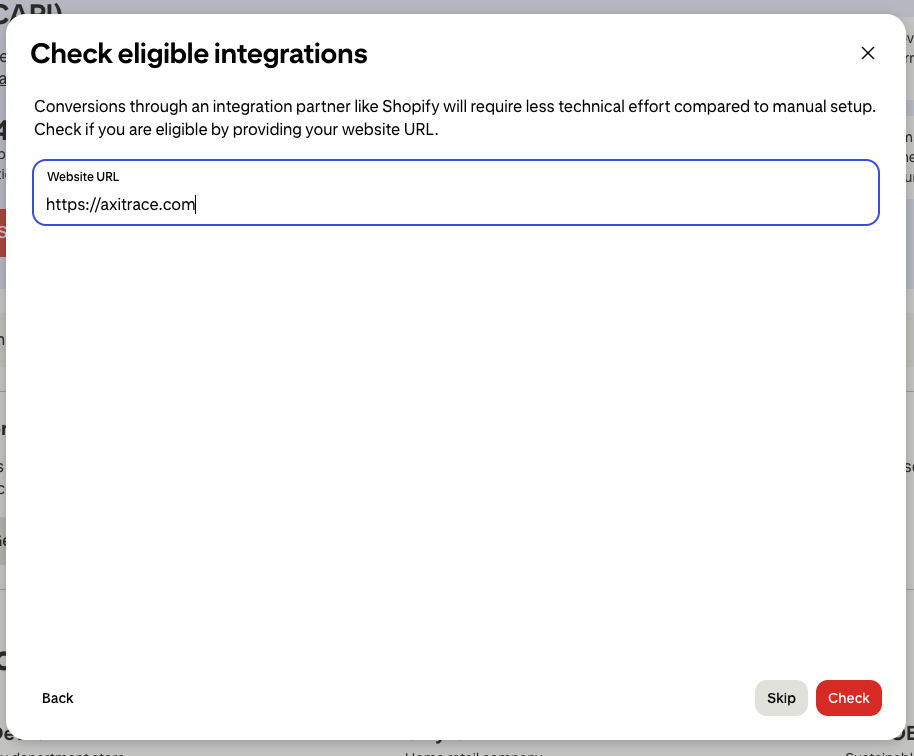
Skip the partner integrations
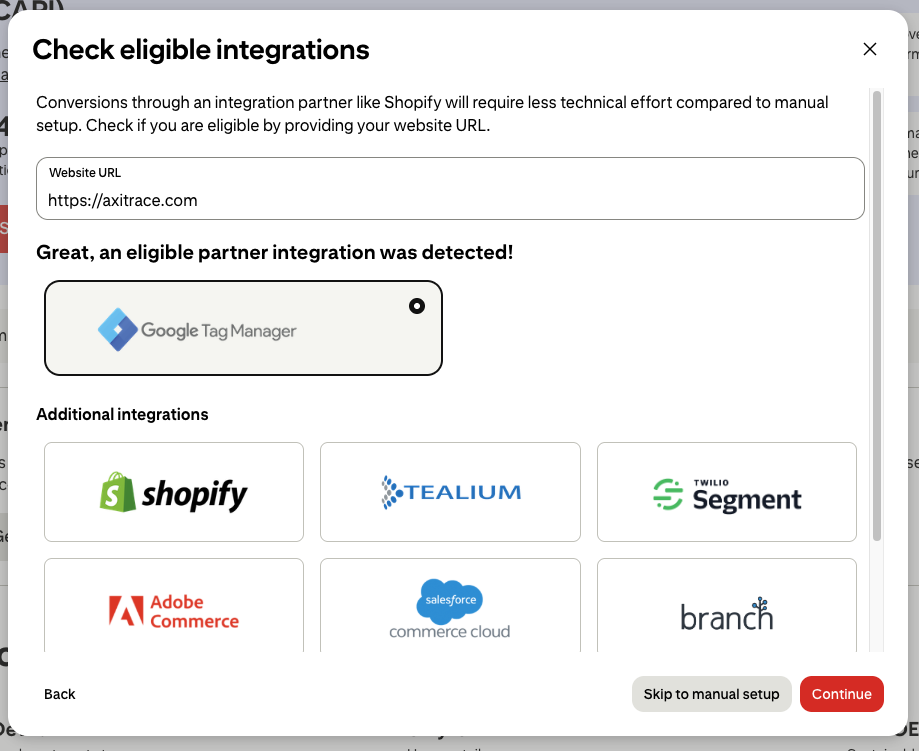
Pinterest may show a “Check eligible integrations” dialog suggesting partner platforms (Google Tag Manager, Shopify, Tealium…). You don't need any of them - AxiTrace delivers your events server-side directly to the API.
- When the dialog appears, click Skip - or, if you entered your website URL and Pinterest detected a partner, click Skip to manual setup.
Copy your Ad Account ID and generate the token
The wizard's Obtain required assets step shows both values you need:
- 2.1 Get ad_account_id - your ad account is listed with its ID, e.g. “Axitrace (ad_account_id: 549770723172)”. Copy the number. To use the token for this ad account you must be its owner or hold one of the Business Access roles Pinterest lists there (Admin, Analyst, Audience or Campaign).
- 2.2 Generate conversion access token - click Generate new token and copy
the token immediately. It starts with
pina_(include the prefix when pasting). Pinterest's own wording: “Please store the access token in a local, secure place. Pinterest does not store personal tokens.” - treat it as shown once; if you lose it, generate a new one. - You can now leave Pinterest's wizard - its remaining steps (build payload, test API request) are what AxiTrace does for you.
Connect in AxiTrace
- In your AxiTrace workspace, open Connections, find the Pinterest Conversions API card and click Setup Pinterest Conversions API.
- Fill in section 1. API Credentials:
| Field | What to paste |
|---|---|
| Ad Account ID | The numeric ID from step 4 (up to 18 characters), e.g. 549770723172. Not a
Pinterest Tag ID - Tag IDs are a different ID space. If you also want the
Pinterest Tag Bridge, its Tag ID goes in the separate, optional
field on the same page. |
| Conversion Access Token | The full token from step 4, including the pina_ prefix. Stored securely; never
shown again in the form after saving. |
- Click Test Connection. AxiTrace sends one test event through Pinterest's official test
mode (
?test=true) - it validates your credentials end-to-end and can never show up in live conversion reporting. - In 2. Event Filtering, pick the events to forward (all standard events are enabled by default - keeping them broad is recommended).
- In 3. Connection Status, select “Active - validate with Pinterest and start forwarding events” and click Save Configuration.
Verify in Pinterest
- Test events: in Ads Manager go to Conversions → Test events - the events sent by the Test Connection button appear here within minutes, with per-event validation results and warnings about missing recommended identifiers.
- Live events: once the connection is Active and your site is receiving traffic, real forwarded events appear under Conversions → Events overview (near-real-time, shown after deduplication).
- Campaign reporting additionally requires a real ad click/view inside your attribution window and can take up to ~24 hours to reflect conversions - don't judge the integration by that screen.
Event mapping
AxiTrace events map to Pinterest's event_name values automatically:
| AxiTrace event | Pinterest event_name |
|---|---|
page.view | page_visit |
product.view | view_content |
search | search |
product.addToCart | add_to_cart |
initiate_checkout | initiate_checkout |
add_payment_info | add_payment_info |
transaction.charge | checkout |
lead | lead |
subscribe (also covers complete_registration) | signup |
start_trial | start_trial |
| any other marketing event | forwarded under its own name as a custom event |
Two notes on this table: purchases map to Pinterest's canonical checkout event name (not
"purchase"), and unlike some other destinations, both search and add_payment_info
are mapped here to their exact Pinterest names rather than folded into a generic lead type.
With every event AxiTrace sends the available match keys: SHA-256 hashed email, phone, external ID,
first/last name, city, state, zip and country, plus the raw IP address and user agent,
revenue metadata (value/currency/item count/order ID) where available - and Pinterest's own
epik click ID (see below).
Click-ID attribution (epik)
AxiTrace captures Pinterest's click identifier (epik) from ad-click URLs, stores it on the
visitor profile at first touch, and attaches it to every server-side event as
user_data.click_id - exactly like Reddit's rdt_cid or Google's gclid.
This works even when the Pinterest Tag itself never loaded in the browser, because the click ID rides in
the landing URL.
Do I also need the Pinterest Tag (browser pixel)?
Yes - with AxiTrace, and it's safe to run both, because we handle the deduplication for you.
Pinterest's own guidance is to pair the browser Pinterest Tag with the Conversions API: the browser leg
improves match rate and reporting completeness, and the server leg catches what the browser misses.
AxiTrace's Pinterest Tag Bridge fires the browser-side event with the same
event_id that AxiTrace's server sends to the Conversions API, so Pinterest's deduplication
engine collapses the pair into one counted conversion (48-hour window, first event kept) instead of two.
Where the Tag ID comes from
The Tag ID is a numeric ID from Pinterest's personalized base code. Find it in Ads Manager →
Conversions → personalized base code - the code contains
pintrk('load', 'YOUR_TAG_ID'); pintrk('page');. Pinterest's guidance is always to take the
personalized base code from the Conversions page of Ads Manager.
Whether you give this ID to AxiTrace depends on which bridge surface your site uses:
-
Web SDK sites (WooCommerce, Shopware, Magento, custom sites): no Tag ID goes to AxiTrace.
Install Pinterest's base code on your site yourself, exactly as you normally would. AxiTrace's SDK
automatically calls
pintrk('track', ...)for the events it bridges, using the same event ID as the server-side event. AxiTrace never reads or needs your Tag ID on this path. - Shopify: the Tag ID goes into AxiTrace. Paste the Tag ID into the optional field on the Pinterest connection page in AxiTrace admin, save, and then install the generated Pinterest Tag Bridge snippet as a Shopify Custom Pixel (Settings → Customer events → Add custom pixel). The snippet installs Pinterest's base code for you inside Shopify's pixel sandbox, because that sandbox cannot see base code pasted into your theme.
Events the bridge covers
| AxiTrace event | CAPI event_name | Tag pintrk name |
|---|---|---|
page.view | page_visit | PageVisit |
product.view | view_content | ViewContent |
search | search | Search |
product.addToCart | add_to_cart | AddToCart |
initiate_checkout | initiate_checkout | InitiateCheckout |
add_payment_info | add_payment_info | AddPaymentInfo |
transaction.charge | checkout | Checkout |
lead / form.submit | lead | Lead |
subscribe | signup | SignUp |
start_trial | start_trial | StartTrial |
contact | contact | Contact |
About the casing: Pinterest's help-center examples show lowercase tag event names
('checkout', 'addtocart', 'pagevisit'), while its developer
documentation and the official Tag ↔ Conversions API mapping table use PascalCase
(Checkout, AddToCart, PageVisit). AxiTrace uses the PascalCase names
from the official mapping table. Deduplication requires the corresponding browser/server event names
and the same event ID; casing alone is not a deduplication mechanism.
The Shopify bridge snippet covers the upper-funnel subset - PageVisit, ViewContent,
AddToCart and InitiateCheckout. Purchase (Checkout) is
deliberately excluded from the snippet: Shopify's checkout_completed event is
documented as lossy (Shop Pay gaps and platform outages can make it under-fire or fire late), so the
revenue-critical purchase stays Conversions-API-only via a deterministic server-side event ID. The web SDK
bridge supports the full map above when the storefront actually emits those events. The Shopware plugin
sends a completed purchase only through CAPI after the order transaction becomes paid. It does not emit
a browser Checkout on the thank-you page, where payment may still be pending.
pintrk('track', ...) manually for events AxiTrace already bridges.
The bridged events are: PageVisit/page_visit,
ViewContent/view_content, AddToCart/add_to_cart,
InitiateCheckout/initiate_checkout, and - on the web SDK surface -
Checkout/checkout, plus the other mapped events in the table above. A manual
pintrk('track') call generates its own event ID, which will never match AxiTrace's, so the
event gets counted twice. If you keep Pinterest's base code in a theme snippet or tag manager, make sure it
does not call pintrk('track', 'pagevisit') or other bridged conversions a second time.
Keep the base loader and pintrk('load'). The standard pintrk('page')
sends Pinterest's init signal; it is distinct from the bridge's PageVisit conversion.
Shopware product catalog and customer matching
In Shopware plugin 0.4.0+, open Extensions → My extensions → AxiTrace Tracking → Configuration and select the Sales Channel. Set Pinterest catalog product ID to Shopware product number or Shopware product number, lowercase to match your feed. This changes Pinterest identifiers only. If a product has no number, its Shopware ID is the fallback.
Product views and product-page PageVisit events include available product details. Successful additions
to the cart use the current cart total, currency and total quantity; checkout and payment-selection events
use the checkout cart. Browser events use line_items; CAPI uses contents and
content_ids. Name, price, brand, category and quantity are included where the shop supplies them.
CAPI monetary values follow Pinterest's numeric-string format; browser values are numbers.
Customer information comes from the current Shopware session through a private, non-cacheable endpoint. With plugin 0.4.2+ and SDK 0.21.2+, customer enrichment follows the resolved workspace policy and the plugin's consent mode. When both gates are off, no consent cookie is required. When either gate is enabled, the configured consent cookie must contain a valid grant. SDK 0.21.3+ supplies available email, first name, last name, city, state, postal code and country to Pinterest Enhanced Match before the event; Pinterest hashes these fields before transmission. CAPI normalizes and hashes the same fields. Anonymous browser events also carry an external ID, shared with CAPI even after the shopper supplies an email. Lead forms use the same matching path. The first Shopware PageVisit waits up to two seconds for private customer context, then proceeds with the available information if the endpoint does not respond.
Every bridged call uses pintrk('track', eventName, {event_id: sharedId, ...eventData}).
Compare this ID with CAPI's event_id in the AxiTrace integration log. The log includes the
actual product/value fields and query-free source URL; customer identifiers remain redacted.
Verifying deduplication
- Complete a full funnel in a cold browser (fresh profile, empty cache): page view → product view → add to cart → checkout, with the bridge installed.
- In Pinterest Ads Manager go to Conversions → Events Overview and open one of the bridged events.
- Check the event's Event Breakdown: the pre-deduplication and post-deduplication counts should show the pair collapsing - two received events (browser + server) counting as one. If they do not collapse, contact support before relying on the bridge.
A consent note for the Shopify snippet: keep the Custom Pixel's data-collection permissions set to
analytics = false, marketing = false, sale_of_data = disabled (the
same as the AxiTrace app pixel), so it is not gated behind marketing/analytics consent for EEA/UK visitors.
If you use a consent management platform on a web SDK site, gate AxiTrace-fired pintrk calls
the same way you already gate your own pintrk calls - AxiTrace's SDK respects its own
workspace and page consent policy and its configured Do-Not-Track setting.
Match quality tips
-
Capture email wherever possible. Pinterest actively audits Conversions API data
completeness for its Verified Merchant Program and recommends roughly 10%+ email coverage on
lower-funnel events (checkout, add-to-cart, signup, lead) for healthy reporting. Hashed email is also
the strongest match key for visitors who arrive without a trackable
epik. - Keep the connection's event checkboxes broad - the more event types you forward, the more chances Pinterest has to attribute a conversion back to an ad click.
- Use the Test Connection button while setting up: it always sends through Pinterest's official test mode, so you can verify delivery end-to-end without polluting live conversion reports.